











FTP Tutorial 2 
Using an FTP Program


 My Previous Lesson taught you how to create an HTML Document on your Windows-Based PC (running Win 11 OS) using Note Pad... in this lesson I will show you how to UPLOAD that Document to an online Web Host, so that anyone with a web browser who knows that page's address (URL) can view it!
First of all I recommend that you make a Shortcut to Note Pad on your Desktop for easy webpage editing!
Next you need to find an online Web Host to serve your webpages from... there are many including free Hosts See Free Host Listings Here but if you are SERIOUS about all of this, I recommend a Professional Host, the benefits are too numerous to mention! I recommend Aplus.Net! Or you can search Google for other Web Hosts... it's up to you! So go ahead and get set-up with a Web Host and learn about all of it's "workings"!
Once you have settled with a Host you will find out what the FTP Host Name is for your account...
You will need this info along with your User Name and Password for the account!
Now to copy your HTML Documents from your PC to your online Host (or visa versa) you need to
use an FTP (File Transfer Protocol) Program... there are many, both free and pay, but I recommend for starters, Filezilla And to understand the very basics of using Filezilla
I recommend reading Filezilla Tutorial ... So go ahead and Download FileZilla (it's FREE), and set it up with your Host's
FTP Host Name, your User Name and Password and learn how to use it by studying the Help Sections
provided from the menubar...
Make a Short-cut to FileZilla on your Desktop after you Download and Install it...
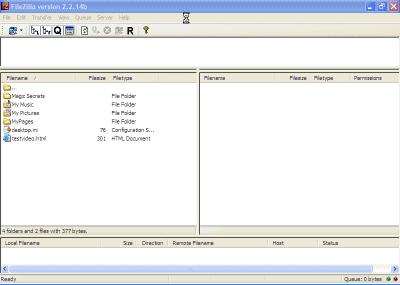
Here is a Screenshot of our FileZilla Screen upon initial opening. Notice the different areas where your Local Files show (on the left), and where your Remote Files (your online Host Server) show (on the right, empty here but upon connecting, they will show as in the next Screenshot below)!
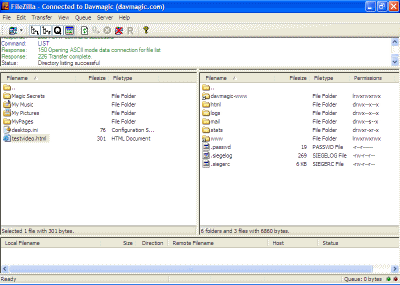
Now Open FileZilla, then Connect Up To Your Online Web Host... then select the Left Side file location for your new HTML Document located in your MyDocuments\Webpages Folder... then select the Right Side location for the Host Directory (Folder) where you want to copy your Document into... then just Double Click the Left Side HTML Document and it will be copied (FTP'd) to your Host's Server...
Click The Buttons Below... To Watch The Tutorial Movie for Using Filezilla!
 Using Filezilla To F.T.P. Your Files
The URL for your new webpage will be something like www.yourhost.com/mypage.html or depending on if you uploaded it to some directory (folder) www.yourhost.com/mydirectory/mypage.html or if you purchased and transfered your own unique Domain Name to the Host www.yourdomainname.com/mypage.html or if you use Free Hosting www.yourwebsitename. yourfreehost.com/mypage.html and now anyone can find it online using their web browser! IMPORTANT: Most online Web Hosts REQUIRE that you name your very FIRST page "index.html"
Remember when you use your text editor on your PC (use Note Pad) to make HTML Changes to your HTML Documents you must be sure to click Save from the File button on the menubar! And every time you change a file, you must use your FTP Program to Upload it to your online Host Server... and when you use your web browser to view the changes, you probably will need to Refresh or Reload the page, since the old version will most likely be Cached by your browser...
Watch the Movie below for an example, which simply shows: [changing a bolded text color from BLUE to BLACK using the WordPad Editor... then opening Filezilla and FTP the newly changed HTML File to the Online Host Directory (where it is actually served from)... then reloading the original web page, to show the design change in the Browser]:
Continue with help pages...use the links below...